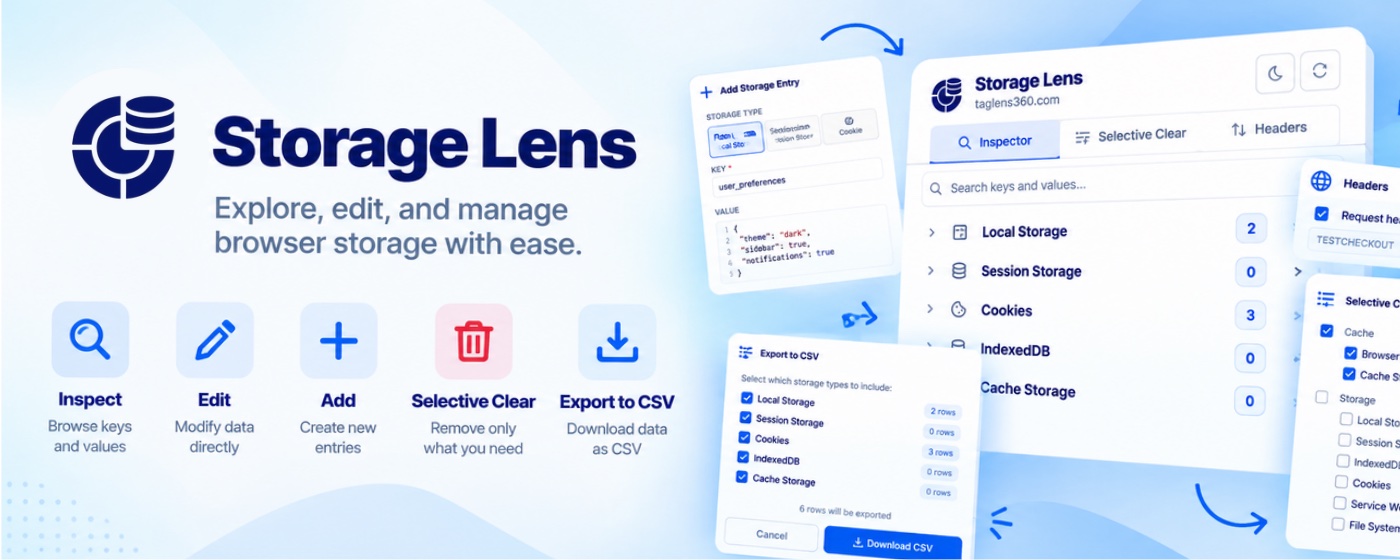
Inspect, search, export and clear website storage with ease. Modify HTTP request and response headers, manage testing profiles and debug browser data — all from one powerful Chrome extension.
Everything you need to inspect and manage browser storage
Websites persist information in cookies, Local Storage, Session Storage, IndexedDB and Cache Storage. Bring accessible data into one convenient interface, and configure request and response headers without changing application code.
Local StorageSession StorageCookiesIndexedDBCache Storage
02 / THE TOOLKIT
Less digging. More debugging.
Inspect application state, make precise changes and share a useful snapshot.
01
Storage Inspector
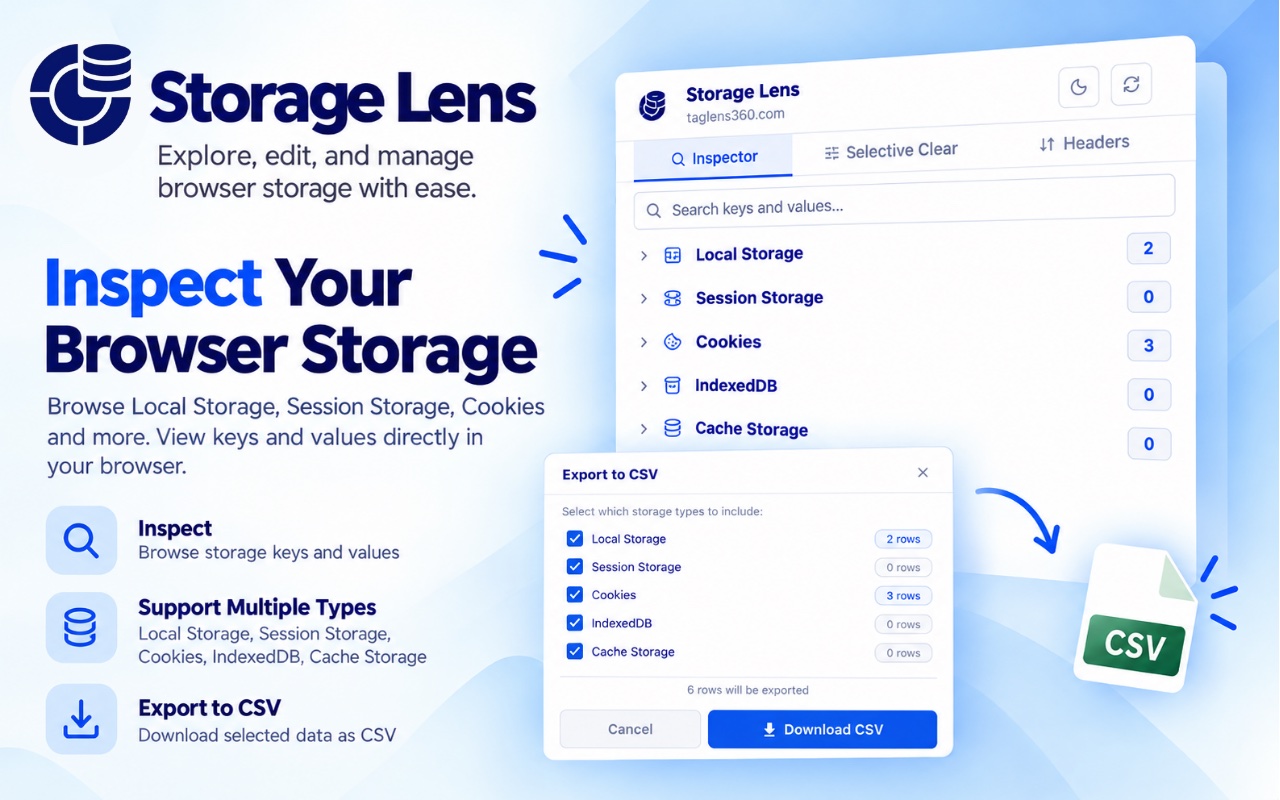
Browse Local Storage, Session Storage, Cookies, IndexedDB and Cache Storage in structured tables, including accessible third-party iframe origins. Decode supported URL-encoded, double-encoded, Base64 and JSON values; switch to raw values and expand one supported category at a time.
02
Delete Selected Entries
Select individual Local Storage, Session Storage and Cookie entries or all eligible visible rows. Selections persist across searches and categories. Review deletion before the inspector refreshes; cookies with ambiguous scopes cannot be selected for deletion.
03
HTTP Header Modifier
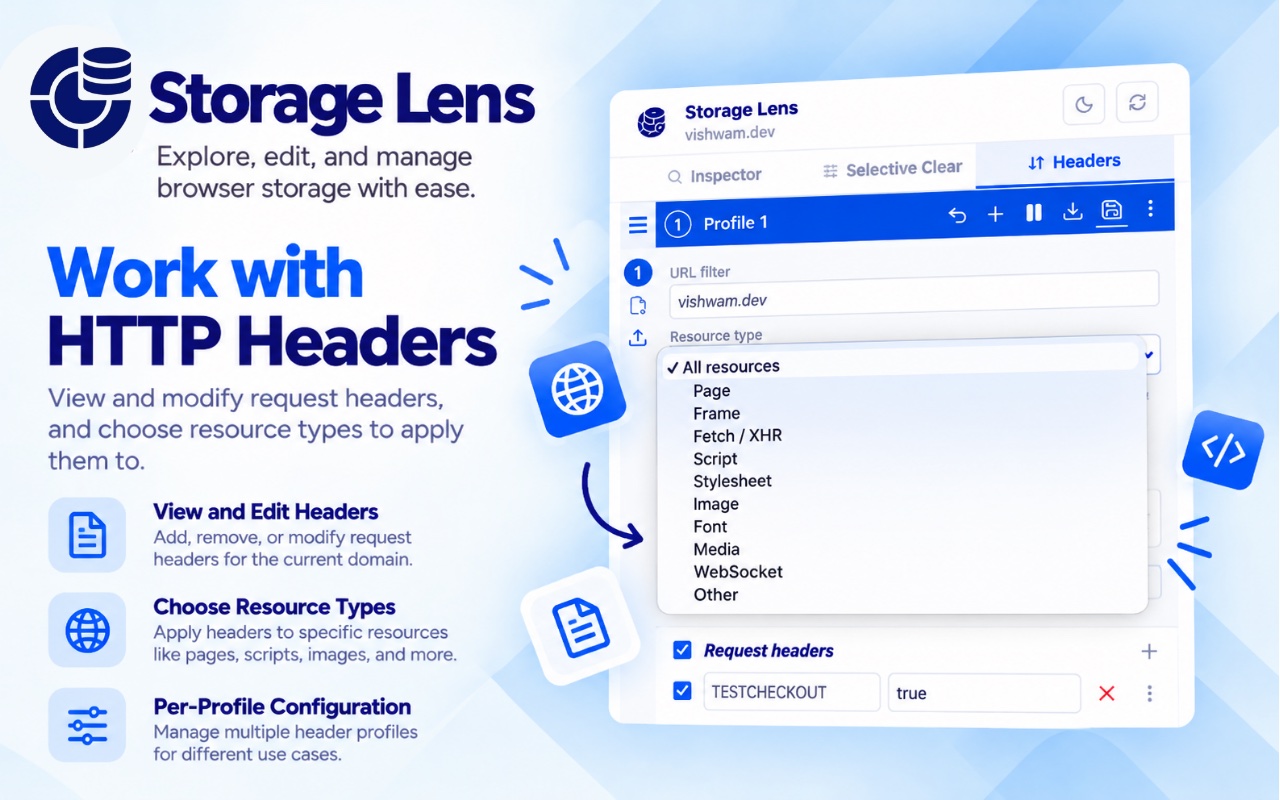
Add, replace or remove request and response headers. Filter by URL and resource type, toggle individual rules, and pause modifications. Save multiple profiles, apply one at a time, and import or export profiles as JSON.
04
Global Search
Search keys and values across inspected categories. Matching text is highlighted, counts appear by type and origin, and categories without matches are hidden.
05
Add Storage Entries
Create Local Storage, Session Storage and Cookie entries. Set cookie path and expiry, validate your input, and see the inspector refresh after saving.
06
Selective Clear
Choose Browser Cache, Cache Storage, Local Storage, Session Storage, IndexedDB, Cookies, Service Workers or File Systems. Your selected options are remembered between sessions.
07
Export to CSV
Export selected categories with Type, Origin, Key and Value columns. Filenames include the hostname and date, making storage snapshots easy to share for debugging.
08
Side Panel Support
Open Inspector, Selective Clear and Headers alongside your page from the context menu. Refresh inspection context when navigating or switching tabs, or keep using the popup.
09
Dark & Light Mode
Choose a consistent light or dark appearance across extension tools. Your theme preference is saved automatically.
03 / GET STARTED
From install to inspection.
Add Storage Lens to your Chrome workflow in four steps.
01
Open Chrome Web Store
Use Add to Chrome to open the official Storage Lens listing.
02
Install the extension
Click Add to Chrome, review the requested permissions and confirm installation.
03
Pin Storage Lens
Open Chrome’s Extensions menu and pin Storage Lens to your toolbar.
04
Start exploring
Open a supported website and click the extension icon to inspect storage or configure headers.
Click the Storage Lens extension icon and select Inspector.
Expand a storage category.
Browse or search its entries.
Switch between raw and decoded values where supported.
05 / HTTP HEADERS
Test HTTP headers without changing your code.
Configure request and response header rules for matching URLs and resource types.
Open the Headers panel.
Create or select a testing profile.
Configure the URL filter, initially populated with the current page domain.
Select request or response headers.
Choose whether to set or remove a header.
Enter the header name and value when required.
Select applicable resource types.
Enable and save the rule.
Reload the target page to test matching new requests.
Authorization headersCustom API headersContent-Security-Policy experimentsSeparate environment profilesTemporarily paused rules
Certain headers are restricted by Chrome. Modifications depend on browser permissions and declarative network request capabilities.
06 / WHO IT’S FOR
Built for the people behind the page.
Web Developers
Debug browser storage, inspect application state and test HTTP headers.
QA Engineers
Validate feature flags, authentication scenarios and environment-specific behavior.
Privacy-Conscious Users
Understand and manage accessible website storage.
Security Researchers
Examine accessible cookie data and experiment with permitted header configurations.
07 / PRIVACY & SECURITY
Your browser data stays under your control.
Storage stays in your browser
No inspected storage or saved profiles are sent to developer-operated servers. No analytics or tracking services are included.
Local settings and profiles
Profiles and preferences are saved locally in your browser.
Header rules affect matching requests
Enabled request-header rules send configured values to matching websites through normal browser requests. Only enable rules for the websites you intend to test.
Handle exports with care
CSV storage exports and JSON profile exports may contain sensitive information, including credentials. You control where exported files are stored and shared.
Browser access limits
Storage operations use Chrome’s scripting API. Access depends on browser permissions and website context. The cookie editor uses document.cookie and cannot create HttpOnly cookies.
Each permission supports a specific part of the extension.
browsingData
Clear supported storage and browser cache.
tabs
Identify the active page and respond to tab navigation.
scripting
Inspect and modify accessible website storage.
storage
Save profiles and settings locally.
declarativeNetRequestWithHostAccess
Apply configured header modification rules.
cookies
Identify cookie scopes and delete eligible cookies.
sidePanel
Provide the browser side panel interface.
contextMenus
Add the right-click side panel action.
Host permissions
Access permitted websites for storage inspection and header modifications.
09 / BUILT WITH
Modern browser tools. Familiar foundations.
ReactTypeScriptViteChrome Manifest V3
Designed around Chrome’s extension platform and the storage your websites already use.
10 / FAQ
A few things you might be wondering.
Is Storage Lens free to use?
Check the official Chrome Web Store listing for current availability and pricing.
Does Storage Lens send my data to external servers?
Inspected storage and saved profiles are not sent to developer-operated servers. Enabled request-header rules send your configured values to matching websites through normal browser requests.
Can I inspect cookies and Local Storage?
Yes. The Inspector supports Local Storage, Session Storage, Cookies, IndexedDB and Cache Storage that are accessible in the current page context.
Can I delete individual storage entries?
Yes, for eligible Local Storage, Session Storage and Cookie entries. You review a confirmation dialog first. Cookies with ambiguous scopes are excluded from selected deletion.
Can I modify HTTP request and response headers?
Yes. Set or remove headers for matching URLs and resource types, within Chrome’s restrictions and granted permissions.
Are header profiles saved between browser sessions?
Yes. Profiles and rules are saved locally. You can also import and export profiles as JSON.
Can I export website storage?
Yes. Export selected categories to CSV with Type, Origin, Key and Value columns.
Does Storage Lens support dark mode?
Yes. The extension supports light and dark themes and remembers your choice.
Can I use Storage Lens in Chrome’s side panel?
Yes. Use the context menu action to open the side panel alongside your current page.
Why do some cookies or headers have restrictions?
Chrome protects some browser data and limits network modifications. The cookie editor cannot create HttpOnly cookies, ambiguous cookie scopes prevent selected deletion, and header changes depend on declarative network request capabilities and permissions.
11 / SUPPORT THE PROJECT
Enjoying Storage Lens? Support its development.
Storage Lens is built to make browser debugging and storage management simpler. If it helps your workflow, consider supporting its continued development and improvement.